Hardware Setup
This page covers running ebusd alongside Home Assistant and the required MQTT broker using Docker Compose.
Prerequisites
This guide assumes:
- eBUS Adapter Shield C6 Stick Edition connected to your eBUS and you WIFI
- You'll need the
ebusd device string, for exampleens:192.168.1.10:9999 - The other settings on the adapter can remain on their default values
- You'll need the
- Home Assistant running on the same network, in Docker
You will need to modify the parameters and how you run ebusd, if your setup is different.
Hardware Setup
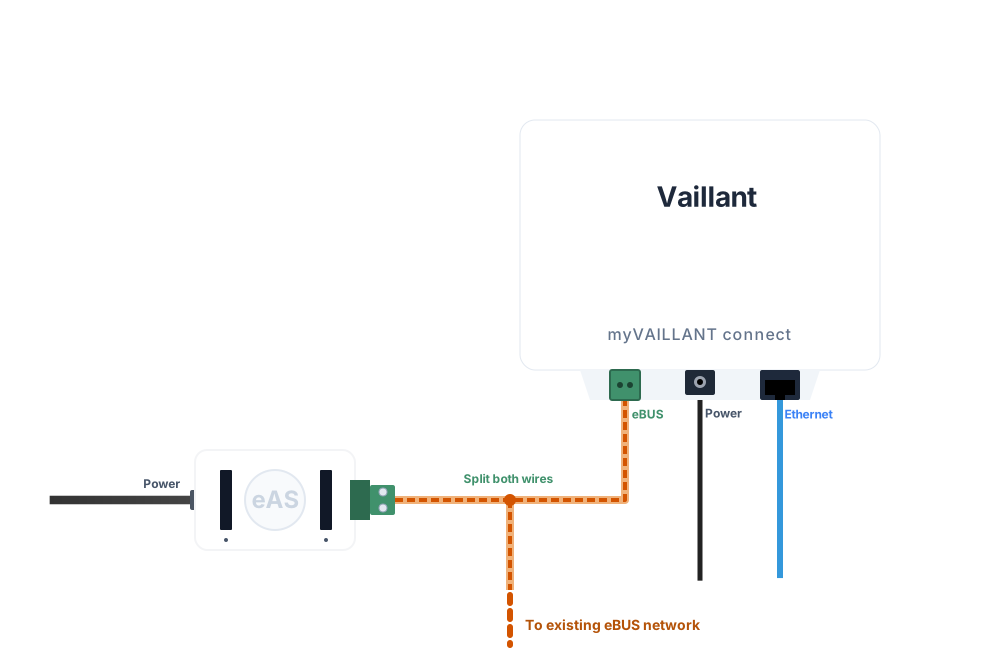
Connect the eBUS stick to your eBUS network, for example by depowering your heating installation, pulling the screw terminal from your existing Vaillant gateway, and splitting that connection into two connections (for example Wago splicing connectors).
You don't need the Vaillant gateway, it's just easiest to get access to its eBUS terminal.
After powering everything back on, connect to the default eBUS adapter WIFI EBUS and open http://192.168.4.1/.
Configure your WIFI in the Config tab under WIFI station/client then save & reboot the adapter.
You shouldn't need to change any other settings.
Software Setup
You need ebusd to communicate with the adapter, and MQTT as a communication layer between ebusd and Home Assistant.
Here's a minimal working docker compose configuration with the eBUS adapter running at IP 192.168.1.10 and
default ebusd settings on the adapter:
services:
    homeassistant:
        image: homeassistant/home-assistant:stable
        restart: unless-stopped
        ports:
            - 8123:8123

    mosquitto:
        image: eclipse-mosquitto
        restart: unless-stopped
        ports:
            - 1883:1883
            - 9001:9001

    ebusd:
        image: john30/ebusd
        restart: unless-stopped
        ports:
            - 8888:8888
        environment:
            EBUSD_DEVICE: "ens:192.168.1.10:9999" # (1)!
            EBUSD_NODEVICECHECK: ""
            EBUSD_SCANCONFIG: ""
            EBUSD_MQTTHOST: "mosquitto" # (2)!
            EBUSD_MQTTPORT: 1883
            EBUSD_MQTTCLIENTID: "ebusd"
            EBUSD_MQTTTOPIC: "ebusd" # (3)!
            EBUSD_MQTTINT: "/etc/ebusd/mqtt-hassio.cfg"
            EBUSD_MQTTJSON: ""
        depends_on:
            - mosquitto
-
Replace the IP address with your eBUS adapter's.
ens:and:9999should remain. Check the full example file if you need to use another connection method. -
If you're connecting to a pre-existing MQTT broker, set its IP or hostname here. You may need to add auth settings, check the full example file.
Leave as is, if you're using this docker-compose.yml file.
-
This needs to match the topic value you configure in Home Assistant in the component setup.
In Home Assistant, you need to set up the MQTT integration with the server set to mosquitto and the rest of the fields
on their default values. The ebusd Home Assistant integration isn't needed, due to EBUSD_MQTTINT: "/etc/ebusd/mqtt-hassio.cfg".
You should see several ebusd entities appearing in the MQTT integration within a few seconds.
Afterward, you can continue with the component setup.
Troubleshooting
No MQTT entities
The eBUS adapter web interface should show ebusd connected: yes and eBUS signal: acquired on the status page.
If ebusd is not connected, check ebusd container logs with docker compose logs ebusd.
If eBUS signal is not acquired, check the physical connection of the adapter to your eBUS network.
Home Assistant Entities
If the ebusd Vaillant integration shows no entities, check the Home Assistant logs. Then dump ebusd MQTT data and add both logs & the data dump to a new ticket.